
How to Boost PC Gaming Performance Windows 8: A Step-by-Step Guide
You can often make games feel smoother on Windows 8 by freeing resources and adjusting game settings before considering a hardware change. A background process is a program or service running without active use that can consume CPU, memory or other system resources. On an older PC, a few busy apps, limited storage or demanding graphics settings can all affect play.
How much performance improves depends on which component is limiting the game. A software change may help when other apps compete for resources, but it cannot make an older GPU meet every game’s demands. Make one change at a time, then compare the same game scene before and after.
Key Takeaways
- Record starting FPS, game settings and the scene you test.
- Try reversible Windows settings before buying hardware.
- Close apps you do not need while gaming.
- Lower demanding graphics options one at a time.
- Windows 8.1 still runs installed games, but is unsupported.
- Keep only changes that help without causing instability.
Write down the game, settings and starting FPS so later changes have a fair comparison.
Is Windows 8.1 Still Safe and Supported?
Windows 8.1 still runs after support ended, but Microsoft stopped providing its security updates, software updates and technical support on January 10, 2023. Installed apps and games can continue to function, but the operating system no longer receives Microsoft security updates. That means working games do not make the PC protected from newly found security risks.
Windows 8.1 can still run games, but it no longer receives Microsoft security updates.
What Windows 8.1 support ending means
Support ending does not switch off Windows or remove installed software. You can keep using compatible apps and games, though they may have their own support limits. The PC also stops receiving Microsoft security updates, software updates and technical support for Windows 8.1.
That gap matters even if gaming performance feels acceptable. Security updates address risks in the operating system, while game performance depends on the title, software and hardware. Treat continued use as a practical choice with a security tradeoff, not as evidence that support remains active.
What Windows 11 requires
Windows 11 has minimum requirements across processor, memory, storage, graphics, firmware and display. PCs originally built with Windows 8.1 are unlikely to meet them. Check the exact PC model and its components before deciding that a Windows upgrade is available.
| Windows 11 requirement area | Minimum requirement | Setup or eligibility note |
|---|---|---|
| Processor, memory and storage | Compatible 1 GHz CPU, 2 or more cores; 4 GB RAM; 64 GB storage | Processor model must be compatible |
| Graphics, firmware and TPM | DirectX 12-compatible graphics, WDDM 2.0 driver, UEFI, Secure Boot capable, TPM 2.0 | All listed features are required |
| Display and Windows 11 Home setup | 720p or higher, over 9 inches diagonally, 8 bits per color channel | Home needs internet and a Microsoft account during initial setup |
Microsoft does not currently offer a free upgrade path directly from Windows 8.1 to Windows 10 or Windows 11. An upgrade may involve a separate license and compatible hardware, so do not assume an older PC can move directly to a newer release.
Check the exact PC model against Windows 11 compatibility requirements before treating an upgrade as an available fix.
How to Boost PC Gaming Performance Windows 8
Start with reversible Windows settings, since they can reduce background demands without requiring a purchase. Change one setting, restart if needed, and test the same game scene before changing another. This makes it easier to tell which adjustment helped.
To boost PC performance for gaming, begin with Windows settings rather than a special optimizer. Windows 8.1 offers Power Options in Control Panel, plus a control for adjusting appearance and performance. These free changes may help the system feel more responsive.
Choose a suitable power plan
Open Control Panel, select Power Options, then choose High performance if it appears. This plan can help a plugged-in PC avoid power-saving limits. Some computers do not show the option, and a laptop may use more battery when running at higher performance.
Reduce Windows visual effects
Windows includes an “Adjust the appearance and performance of Windows” control. Choose “Adjust for best performance” to reduce effects, or “Let Windows choose” to keep Windows-managed settings. Fewer effects may make menus and windows feel quicker, but they do not guarantee higher in-game FPS.
- Open Control Panel, select Power Options, and choose High performance if available.
- Open the appearance and performance controls, then choose the visual-effects option that suits you.
- Restart the PC and retest the same game scene at the same settings.
Windows 8 does not have the Game Mode toggle found in Windows 10 or Windows 11. Do not follow newer menu instructions that tell you to turn on that mode. To make a Windows 8 PC faster for games, use these reversible settings and close unused programs before playing.
On a laptop, return to a balanced plan when unplugged if battery life matters more than peak performance.
Which Startup Apps and Background Tasks Should You Disable?
Startup apps are a good first place to look when a game competes with launchers, browsers and other software for memory or CPU time. Disable only startup entries you recognize and do not need at sign-in. Removing an automatic launch does not stop you from opening that app later.
Windows 8.1 Task Manager lists automatic applications on its Startup tab. A long list can include game launchers and utilities that do not need to run all day. Close programs you recognize and can safely reopen when needed.
Review automatic startup entries
- Open Task Manager from the taskbar or press Ctrl + Shift + Esc.
- Select More details if Task Manager shows the compact view.
- Open the Startup tab to review apps that start automatically.
- Disable only apps you recognize and do not need at sign-in.
A disabled startup app can still be launched manually. If a game needs its launcher, open the launcher before play rather than keeping it active all day. Check an app’s purpose before changing its startup status.
Keep background and security software under control
Close unused browser tabs, game launchers and other apps before starting a game. Four or more programs, several browser windows and open email can exceed what a device handles comfortably, especially with limited RAM.
Keep one active antivirus or antispyware program, and do not uninstall your only protection. Running more than one at the same time can decrease performance, make a device unstable or cause unexpected restarts. Advanced users should leave unfamiliar Windows services alone.
Recheck the Startup tab after removing an app, because its installer may have added a new automatic entry.
How Should You Check and Optimize a Windows 8.1 Drive?
Drive maintenance can help when errors, low free space or a fragmented hard drive are contributing to slow loading. Use Windows’ built-in tools, and let each check finish before running another task. A drive with little free space can also leave less room for temporary files and updates.
Windows 8.1 includes Check Disk, Disk Cleanup and Optimize Drives. You can access drive tools by opening File Explorer, right-clicking a drive, choosing Properties, then selecting the Tools tab. Choose the tool based on the problem you are checking.
| Tool | Use it when | Timing or limit |
|---|---|---|
| Check Disk | You suspect drive errors | Several minutes or longer; restart may be needed |
| Disk Cleanup | Temporary or system files use space | Can also empty the Recycle Bin |
| Optimize Drives | A supported drive needs optimization | Weekly automatic schedule; manual run available |
Check for drive errors
In drive Properties, open Tools and choose the error-checking option. Check Disk looks for drive errors and may take several minutes, depending on hard-drive size. Close other tasks while it runs. Windows may need a restart to complete the check.
Do not interrupt the check just because it takes longer than expected. The drive size and the work needed affect its duration. Let Windows finish before returning to other work.
Remove unnecessary files
Disk Cleanup can remove temporary files, system files and items in the Recycle Bin. Review the listed file types before confirming removal, especially if you are unsure whether you need something. The System Maintenance Troubleshooter can also identify and clean unused files and shortcuts.
Analyze and optimize the drive
Windows 8.1 Optimize Drives runs automatically on a weekly schedule, and you can start it manually. Microsoft advises optimizing a drive when it is more than 10 percent fragmented. In drive Properties, use the Tools tab to open the drive optimization controls.
Manual optimization can take several minutes to several hours, depending on drive size and the work required. Do not optimize a drive through Optimize Drives if another program is using it, if it has a file system other than NTFS, FAT or FAT32, or if it is a network drive.
ReadyBoost may appear when compatible flash memory cards or USB flash drives are available. It is optional, and it is not a guaranteed substitute for RAM. Let Check Disk finish without other work running, and do not force Optimize Drives on a drive that Windows marks unavailable.
Which In-Game Graphics Settings Should You Lower First?
Lower shadows and other expensive effects before making a large resolution cut, since that often preserves a clearer image. Try one graphics setting at a time, then compare the same scene at the same settings. This helps you find a useful tradeoff instead of making every game look worse.
Graphics settings affect how much work the GPU must do. Shadows and anti-aliasing can use substantial graphics resources, while texture quality can be limited by available GPU memory. A setting that helps one game may have little effect in another.
Reduce demanding visual effects
- Resolution or render scale: lower values mean fewer pixels for the GPU to render.
- Shadow quality: reduce it if shadow-heavy scenes slow down.
- Anti-aliasing: test a lower level to reduce graphics work.
- Reflections or volumetric effects: reduce them when these effects strain performance.
- Texture quality: match the setting to the GPU’s available memory.
Keep image quality readable while testing
Keep the game at its native display resolution first if clear text and image detail matter to you. Then reduce demanding effects, starting with shadows or reflections. If FPS remains too low, try lowering resolution or render scale. That can improve FPS, but it may soften the image.
Texture changes should reflect the GPU’s available memory, not just a desire for higher detail. A game may stutter when its textures exceed what the GPU can manage smoothly. Make one adjustment, play the same scene, and note whether motion feels steadier.
These changes affect local rendering, not online ping. A lower resolution cannot fix delayed actions caused by a network connection, so judge FPS and online responsiveness separately.
Keep the settings that improve smoothness in the scenes where the game actually slows down.
How Do You Update Windows 8 Graphics Drivers Safely?
A driver update is useful only when it supports both the graphics card model and the installed version of Windows. Identify the exact GPU before downloading a driver. A package for a different model or Windows release can fail to install or create problems.

NVIDIA, AMD and Intel make graphics hardware and driver software. The right download depends on the exact GPU and operating-system compatibility. A newer version is not automatically the right version for an older Windows PC.
Find the exact GPU and compatible driver
Check the GPU name in Windows before visiting the graphics maker’s driver page. Use the exact model to narrow the choices, then confirm the listing supports the installed Windows version. Install only a driver that matches both requirements.
Do not use random driver-download utilities that promise to update everything at once. They can select an incompatible package or add software you do not need. If the PC works reliably, avoid replacing a known-working driver without a clear reason.
Use the graphics control panel carefully
A GPU control panel may offer global settings or profiles for individual games. The available controls vary by GPU model and driver, so do not assume every menu exists on your PC. Use a game-specific profile when you want a change to affect one title.
Avoid unstable overclocking on a PC that already struggles. Raising GPU speed can add heat or instability, and it does not solve every performance limit. Change only options you understand, then test the game for crashes or visual errors.
If no compatible driver is offered for Windows 8.1, keep the known-working driver rather than forcing a package for a different Windows release.
How Can Laptop Players Balance Gaming Power and Heat?
Plugging in is the simplest first check when a laptop reduces performance to stretch battery life. Use a suitable power plan during demanding sessions, while keeping airflow clear. Higher-performance settings can use more power and make a laptop warmer.
A laptop can limit CPU or GPU performance to conserve battery. Check the available power plan and close background apps before playing. High performance appears on some systems, but it is not available on every laptop.
Play plugged in when maximum performance matters
For a demanding game, connect the charger and check whether performance improves. A battery-focused power plan may hold back the system even when the game needs more resources. Keep in mind that higher power use can shorten battery life.
Close apps that are not needed during play. Background programs can compete for system resources, while unnecessary launchers and browser windows add extra work. Retest the same scene after closing them so you can see whether the change matters.
Keep vents clear and watch for heat-related slowdown
Place the laptop on a hard, flat surface and keep intake and exhaust vents clear. Soft bedding can block airflow and trap heat around the device. Avoid covering the underside or setting the laptop on fabric during a long session.
Notice when performance drops. If a game starts smoothly but slows after the laptop has been running for a while, heat may be part of the problem. That pattern differs from a steady low FPS that appears as soon as the game starts.
If FPS falls only after a long session, check airflow and temperature patterns before lowering every graphics setting.
What Network Changes Reduce Online Lag?
If a game looks smooth but player actions arrive late, check the connection before changing graphics settings. Network latency affects online responsiveness, while local FPS depends on the PC rendering the game. A network tweak cannot make a weak GPU render more frames.
Try these connection checks during multiplayer play:
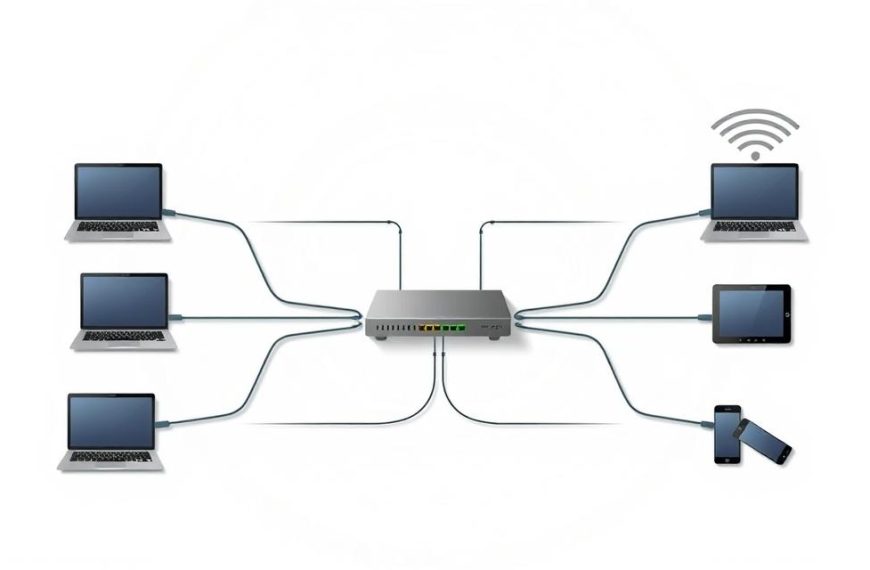
- Use Ethernet if practical, since it is generally more stable and lower latency than Wi-Fi.
- Pause large downloads and streams that compete for available bandwidth.
- Close apps that use a lot of bandwidth while you play.
- Select the nearest available game server to reduce the distance data travels.
Router Quality of Service settings can prioritize game traffic, but they cannot guarantee lower ping. The router still shares available bandwidth with other devices and activity. Use that option as a priority setting, not a promise of faster responses.
Compare the same multiplayer game over Ethernet and Wi-Fi to see whether the connection is contributing to the lag.
How Can You Tell Whether a Tweak Improved Performance?
A tweak counts as an improvement only if the same game or test runs better under the same conditions afterward. Record FPS and, when available, frame-time consistency in the same scene, at the same settings, before and after each change. A single good run can be misleading.

Use a built-in counter or a repeatable benchmark, and avoid changing several settings between runs. 3DMark and Unigine Valley are optional comparison tools. Older Windows comparisons show why results need context: a small gain on one system does not predict performance on another.
| Test | Windows 10 result versus Windows 8 | Reported difference |
|---|---|---|
| Final Fantasy XIV: Heavensward | Windows 10 scored over 100 points higher | Total score almost 11,000 |
| Batman: Arkham Knight | Windows 10: minimum +1 FPS; maximum and average +3 FPS | Test PC: Core i7-4790K, GeForce GTX 970, 32 GB RAM |
| Total War: Attila | Windows 10: average +2 FPS, maximum +5 FPS, minimum +2 FPS | Test PC: Core i7-4790K, GeForce GTX 970, 32 GB RAM |
| 3DMark Fire Strike | Windows 10 scored 70 points higher | Windows 10 was slightly worse in the physics test |
| Unigine Valley | Windows 10 average +0.6 FPS, overall score +22 points | Minimum was 0.2 FPS lower; maximum was 0.1 FPS lower |
The Windows 8 and Windows 10 results came from a PC with an Intel Core i7-4790K, NVIDIA GeForce GTX 970 and 32 GB of RAM. In Final Fantasy XIV: Heavensward, Windows 10 scored over 100 points higher, with a total score near 11,000. The differences were specific to that hardware and those tests.
A separate six-operating-system test used Lenovo ThinkPad X220 laptops with Core i5-2520M processors, 8 GB RAM and 256 GB hard drives. Windows 8.1 booted fastest, but the test was unscientific and its hardware favored older software.
In that comparison, Windows 8.1 loaded 252 browser tabs before memory use reached 5 GB. The test used Supermium because Firefox and Chrome did not load pages properly on the older Windows versions. Windows 8.1 placed second in the Cinebench R10 single-core test.
These comparisons are not guarantees for your Windows 8 PC. Hardware, software versions and test conditions differ, so compare your own system using a repeatable scene. Keep a change only when the repeat test shows a useful improvement without introducing instability.
When Is Hardware or a Newer Windows Version the Better Fix?
A hardware change becomes the better fix when careful settings adjustments still leave the same component as the consistent bottleneck. A consistently maxed GPU points to a different limit than a CPU bottleneck. Check Task Manager’s CPU, memory and disk views to see which resources stay under pressure during play.
Match the fix to the component under pressure; an SSD cannot guarantee higher rendering FPS.
The GPU usually matters most for graphics-heavy gaming, while the CPU handles game logic and physics. If one remains heavily loaded while others have room, that pattern can help identify the limit. Check whether your PC can accept a component change before shopping.
Sixteen GB of RAM is a common recommendation for modern games, not a requirement for every older title. Thirty-two GB can help with memory-heavy multitasking. Task Manager’s memory view can show whether limited RAM is contributing to slowdowns.
An SSD can reduce game loading times and make Windows feel more responsive. It does not guarantee higher rendering FPS, which depends more directly on the GPU and CPU. A Windows change also cannot make old hardware meet a game’s demands automatically.
Check motherboard, power-supply and operating-system compatibility before buying a replacement component.
Conclusion
A few careful changes can make an older PC feel more responsive, even when they cannot remove every hardware limit. Start with reversible adjustments, test one at a time, and keep a record of the result. That gives you a clearer answer than changing several settings at once.
Windows 8.1 remains usable, but it is unsupported. For a practical next step, write down your PC’s CPU, GPU and RAM, then test one game setting or startup change using the same scene.
Start with one repeatable test today, then keep only the changes that improve your own games.
FAQ
Is Windows 8 still good for gaming?
Windows 8.1 can still run compatible installed games, but it is unsupported. Microsoft ended support on January 10, 2023, so the operating system no longer receives Microsoft security updates. Game compatibility depends on the specific title, drivers and hardware. A game that already works may continue to run, but that does not mean every newer game will support the system.
Is Windows 8 still usable in 2026?
Yes, Windows 8.1 and installed apps or games can continue to function in 2026. The important limitation is that the PC no longer receives Microsoft security updates, software updates or technical support. That leaves the operating system exposed to risks that later updates might address. Continued function and continued security support are separate things.
Is Windows 8 too old?
Windows 8.1 can still run, but it is unsupported and may not suit newer games or software. PCs originally built with Windows 8.1 are unlikely to meet Windows 11’s minimum requirements. Check the exact processor and other components before planning an upgrade. A PC can remain useful for compatible games without being a good fit for every current title.
What’s the oldest CPU that can run Windows 11?
There is no single age-based CPU cutoff for Windows 11. It requires a compatible processor running at 1 GHz or faster with at least two cores, and the exact model must be eligible. Processor speed alone does not confirm compatibility. Check the processor model alongside the other Windows 11 requirements before choosing an upgrade path.
Can a PC last 20 years?
Yes, a PC may remain operational for 20 years, but lasting that long does not guarantee acceptable performance or current game compatibility. Parts can fail, replacement components may be hard to find, and newer games can demand more than the system can provide. A long-lasting PC can still serve older games or basic tasks if its hardware remains functional.
Can a 10 year old PC run Windows 11?
Some 10-year-old PCs may run Windows 11, but age alone does not decide eligibility. Check the exact processor and requirements for TPM 2.0, Secure Boot, memory, storage, graphics and display. PCs originally designed for Windows 8.1 are unlikely to meet all minimum requirements. A processor that seems fast enough may still be incompatible by model.

 By
By